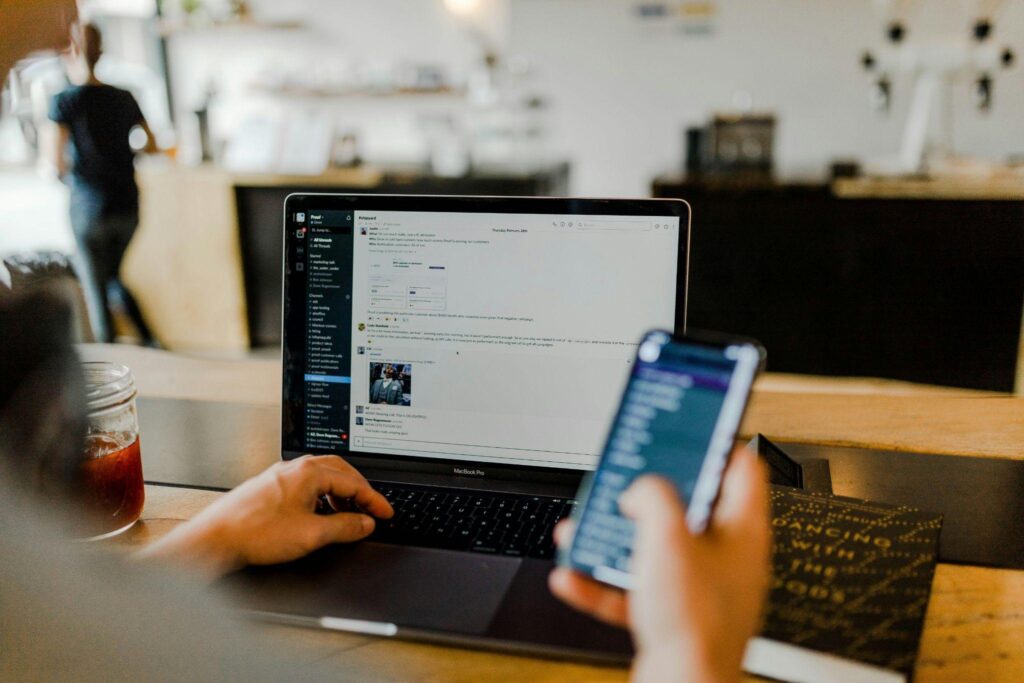
Most people no longer own just one screen. A laptop for work, a phone in a pocket, a tablet on the couch, and often a second computer somewhere in the mix. The file or program someone needs is rarely on the device they happen to be holding at that exact moment.
That mismatch is exactly what remote pc software for multiple devices is built to solve. It turns a single computer into something reachable from whichever screen is actually in front of you at the time.
U.S. households now connect an average of 17 to 21 devices to their home network, up noticeably from roughly nine in 2020, according to recent broadband industry research. That growth is exactly why device-hopping has become the norm rather than the exception.
Key Takeaways
- Remote PC software lets you reach one computer’s files, applications, and desktop from a phone, tablet, or another computer entirely.
- The average household now connects 17 to 21 devices to its home network, roughly double the figure from 2020.
- Cross-platform support matters more than raw speed, since the device you have on hand rarely matches the one holding your files.
- Security should scale with convenience: more entry points means authentication and encryption carry more weight, not less.
- The best setups let you start a task on one screen and finish it on another without missing a step.
Why Every-Device Access Has Become the Expectation
A decade ago, switching between a work computer and a personal laptop meant emailing yourself a file or carrying a USB drive. Now the expectation has flipped. People assume that whatever they were doing on one screen should be reachable from the next one they pick up, whether that is finishing an email on a phone or pulling up a spreadsheet on someone else’s tablet during a meeting.
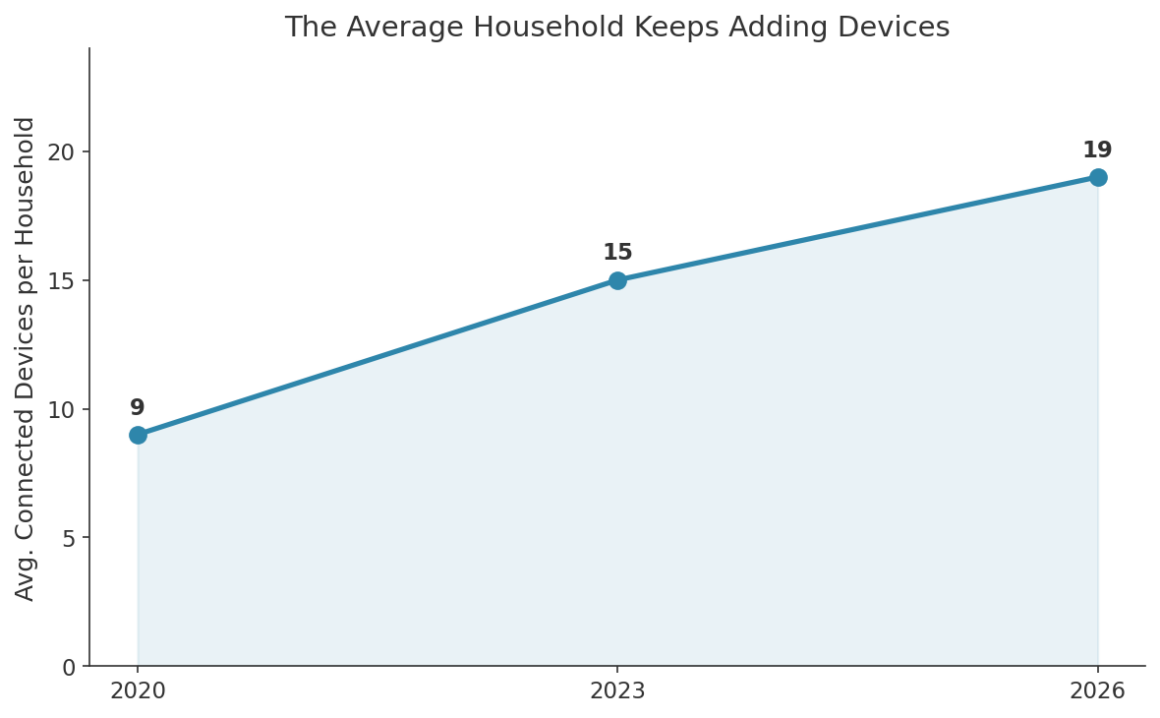
“The average U.S. household with broadband has around 17 to 21 connected smart devices as of 2026, up from around 8 to 10 devices in 2020.” — BroadbandSearch, 2026
That growth is not limited to smart speakers and thermostats. Work devices are part of the same trend, and separate workplace surveys have found employees typically use between two and three devices for their job on any given day, computers, phones, and tablets among them.
Independent research points the same direction. Deloitte’s Connectivity and Mobile Trends research has tracked U.S. households in the low twenties for connected devices in recent years, reinforcing that this is a settled trend rather than a one-off estimate.
How Remote PC Software Actually Enables This
One Computer, Many Entry Points
The core idea is simple. The software runs on the computer that holds your files and applications, then gives an authorized device a way to connect to it and display its screen. The computer being reached does the actual work. Whatever is doing the reaching, a phone, a tablet, a different laptop, just becomes a window into it. Nothing has to be copied, exported, or converted along the way, because the connecting device is only ever looking at the original.
Cross-Platform Support Is the Real Differentiator
Speed claims matter less than whether the tool actually works from the device you happen to have. A solution that only supports Windows-to-Windows connections is not much use when you are standing in an airport terminal with only an iPad on hand. Look for coverage spanning Windows, Mac, iOS, Android, and Chromebooks at minimum.
Picking Up Where You Left Off
The most useful implementations let a session continue seamlessly. Start editing a document on a desktop, step away, and finish that same task from a phone during a commute, without exporting, re-uploading, or losing formatting along the way. That continuity is the actual point of multi-device access, not just being able to peek at a screen remotely.
|
Pro Tip: Test remote access from your least convenient device first, not your primary laptop. If it works smoothly from an older tablet or a budget phone, it will work everywhere else too. |
Cloud File Sync vs. Remote PC Access
People often reach for cloud storage when they really need remote access, or the other way around. The table below breaks down where each approach actually fits.
|
Factor |
Cloud File Sync |
Remote PC Access |
|
What you reach |
Copies of specific files |
The entire computer, live |
|
Software access |
Only if also cloud-based |
Any program installed locally |
|
Setup |
Per-folder or per-file |
One-time, whole-machine |
|
Best for |
Sharing documents across devices |
Running specific software remotely |
|
Storage limits |
Often capped by plan |
Limited only by the host machine |
More Devices Means Security Has to Scale Too
Every additional device that can reach your computer is another possible entry point. Understanding how endpoint security actually works helps explain why convenience and protection are not opposites: a properly configured remote access setup can be both easy to use and hard to compromise, but only if authentication is treated as non-negotiable rather than optional.
This is where general comprehensive IT support built around remote monitoring earns its keep. A support team that already manages devices remotely is well positioned to configure the same access safely, rather than leaving each device to fend for itself.
What to Look for in a Multi-Device Remote Access Tool
Not every tool built for occasional personal use holds up once several devices and people are involved. When comparing options, prioritize:
- True cross-platform support: confirm it works on every operating system you or your household actually uses, not just the two most common ones.
- Strong authentication: a password alone is not enough when multiple devices can reach the same computer.
- Session handoff: the ability to disconnect from one device and reconnect from another without losing your place.
- Reasonable performance on mobile: a tool built primarily for desktop-to-desktop use often feels clunky on a small touchscreen.
- Clear session logging: knowing which device connected, and when, matters once more than one or two people share access.
Teams following how AI-assisted development is changing daily workflows are also seeing this multi-device pattern play out among developers, who increasingly expect to jump between a workstation and a lighter device without losing their environment.
Getting Started: A Simple Setup Checklist
- List every device your household actually uses on a regular basis, not just the primary two.
- Choose a tool confirmed to work across all of them, tested before you rely on it during a real emergency.
- Set up strong authentication on the host computer before adding any additional connecting devices.
- Test a full session handoff by starting one task on a device and finishing it on another to confirm continuity works as expected.
- Review which devices have access every few months and remove any that are no longer in regular use.
Frequently Asked Questions
What is remote PC software, in plain terms?
It is a tool that grants a trusted device the ability to view and control a specific computer from somewhere else, showing its screen and accepting input as if you were sitting in front of it directly.
Can I access my computer from a phone that runs a different operating system?
Yes, as long as the software supports cross-platform connections. Most established tools work across Windows, Mac, iOS, and Android without requiring matching systems on both ends.
Is it safe to let multiple devices access the same computer?
It can be, with the right safeguards. Strong authentication, encrypted sessions, and clear logging of which device connected are the baseline protections worth confirming before granting broad access.
Do I need a fast internet connection for this to work well?
A stable connection matters more than a fast one for this kind of use. Most remote sessions use modest bandwidth, so a reliable link on the mobile side tends to count for more than raw download speed.
What happens if I lose one of my connected devices?
Revoke that device’s access immediately from the host computer or account settings. This is one more reason to review connected devices regularly rather than only when something goes wrong.
Does remote PC software help with anything beyond work tasks?
Both. It is just as useful for reaching a home computer’s photo library from a phone while traveling as it is for reaching a work desktop from a personal laptop.
Making Every Screen a Way In, Not a Limitation
The device in your hand should never be the reason you cannot reach the file, program, or desktop you actually need. As households and workdays both spread across more screens, remote PC software has quietly become one of the more practical pieces of everyday infrastructure rather than a specialty IT tool reserved for large companies.
Set it up once, on the device that matters most, and every other screen becomes a way in rather than a limitation. That shift, from owning one computer to reaching it from anywhere, is what actually makes multi-device life manageable, and it only gets more relevant as the average household keeps adding screens to the pile.
References
BroadbandSearch, Home Network Statistics 2026, 2026 — https://www.broadbandsearch.net/blog/home-network-statistics
Deloitte, Connectivity and Mobile Trends Survey, 2026 — https://www.deloitte.com/us/en/insights/industry/telecommunications/connectivity-mobile-trends-survey.html
Beyond Identity, BYOD: Exploring the Evolution of Work Device Practices, 2025 — https://www.beyondidentity.com/resource/byod-exploring-the-evolution-of-work-device-practices-in-a-new-remote-forward-era-survey
Fortinet, What Is Endpoint Security? How Does It Work?, 2026 — https://www.fortinet.com/uk/resources/cyberglossary/what-is-endpoint-security
Splashtop, Remote Desktop Solutions, 2026 — https://www.splashtop.com/solutions/remote-desktop
Fact Check: All statistics and data points in this article were verified against original sources as of August 20, 2026. Sources are listed in the References section.